MMOVIE
Create a movie screenplay
Write a film with numbered scenes, interior/exterior locations, time of day, visible action, and character dialogue.
[SCENE / LOCATION / TIME]
Visible action
CHARACTER: Dialogue
Create movie screenplay →
From your first idea to your next chapter. Learn what the studio can do today.
Choose a format, enter your story and instructions, and generate a plan followed by dialogue and directions.
Write a film with numbered scenes, interior/exterior locations, time of day, visible action, and character dialogue.
[SCENE / LOCATION / TIME] Visible action CHARACTER: DialogueCreate movie screenplay →
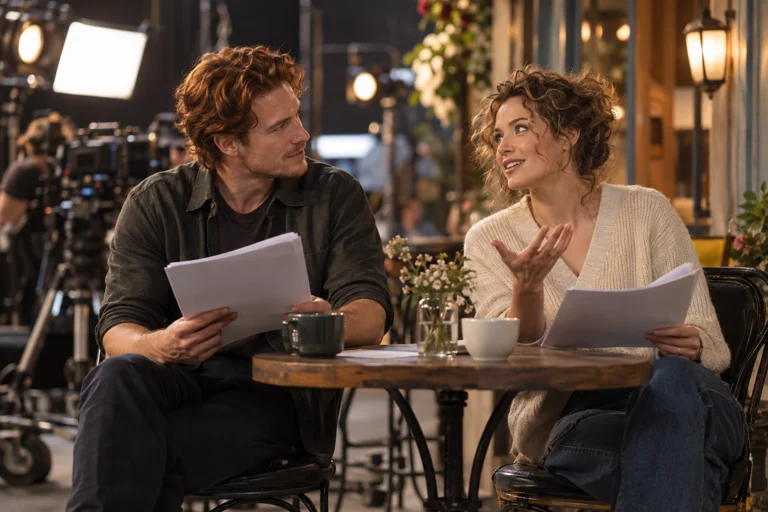
Plan each episode with numbered scenes, locations, character dialogue, emotional turns, and an episode ending.
EPISODE · SCENE / LOCATION / TIME
Action
CHARACTER: Dialogue
Create drama script →
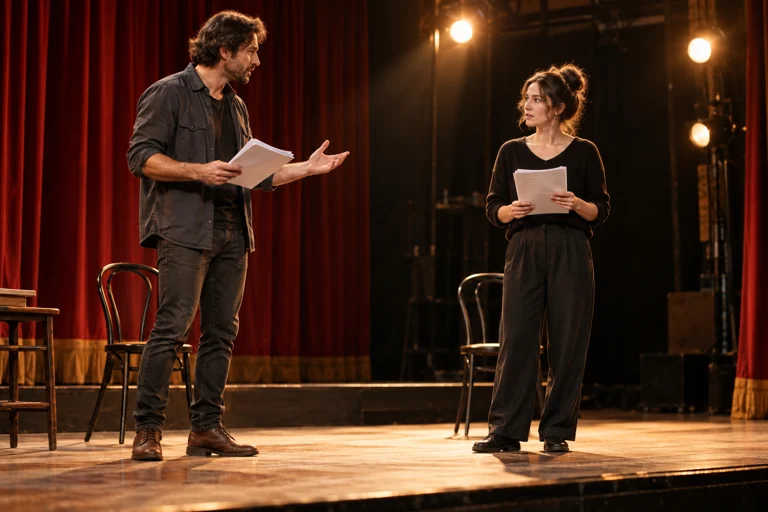
Organize acts and scenes with entrances, exits, lighting, sound, movement, and dialogue that actors can perform on stage.
ACT · SCENE
(Stage direction: movement and action)
CHARACTER: Dialogue
Create stage play →
Your scripts are saved by scene or episode. Continue writing, polish, read in a new window, and export Markdown. Select the format when creating a new project.
From your first idea to your finished manuscript.
Paste your story, add your request, and let AI plan scenes before writing them.
Paste a premise, dialogue, or an existing draft into the home page. Add the genre, tone and ending you want in the instructions field, then press “Auto-write novel”. No manual setup is required. The title is optional: when AI is connected, NOVA suggests a title from your story. Without a connection the draft is saved as Untitled story. Rename it in Story bible. Your original draft is preserved separately. AI detects the genre and plans 5–12 scenes, each with a title and at least three narrative paragraphs, before writing each scene.
Use “Import draft” for UTF-8 TXT or Markdown files up to 2 MB. Review the imported text before creating your project. PDF and DOCX are not supported yet. In Settings, you can also restore a NOVA JSON backup. Restoring a backup replaces the current local collection: export it first.
Open a project from your bookshelf. Edit the chapter title and manuscript, add chapters, or move a chapter upward with the arrow. Add a chapter summary to carry important events into future AI requests.
Open Story bible to record character details, relationships, world rules and a premise. These notes are included in AI requests. They guide the model; they do not guarantee that every response will follow the canon.
Continue, Polish, Plot ideas and Continuity review send a request to the server. You can add your own instructions. Review the proposal before accepting it. Acceptance appends the proposal to the chapter and keeps a snapshot. Live generation is connected. Auto-write novel saves completed scenes as they finish; the progress panel shows the current stage and elapsed time. Stop pauses after the current request, and the same button resumes unwritten planned scenes. Provider limits or errors appear beside the button.
The current studio saves in this browser only. Use “Save version” before major edits and History to restore a snapshot. Up to 30 snapshots per project are retained. Export a full JSON backup regularly; clearing browser data can erase local manuscripts.
Download a project as Markdown from the editor or export all projects as JSON in Settings. Plans currently show reference pricing only. Payments, credits and subscriptions are not active, and you will not be charged here.
Adult romance, emotional intimacy and non-explicit mature themes are part of the editorial direction. Explicit sexual generation and child sexual exploitation are excluded. No age-verification service or publication moderation pipeline is active yet.